








You buy a bundle in the morning and by afternoon it’s nearly gone, even though you barely did anything. Sound familiar? You’re not imagining it. Your phone and apps use data constantly, often without you opening them.

This guide explains where your data actually goes and gives you 10 settings that can make your bundle last much longer, on both Android and iPhone.
Why your data disappears so quickly
1. Video eats the most data
Streaming video is the biggest data user on most phones. As a rough guide, standard-quality video uses around 1 GB per hour, while HD uses several times more. A few episodes or a long live stream can finish a bundle fast. Short videos on TikTok, Instagram Reels and Facebook add up too.
2. Apps use data in the background
Even when you’re not using an app, it may be refreshing feeds, syncing, checking notifications or uploading files. Dozens of apps doing this all day is a major drain.
3. Automatic updates and downloads
App updates, game patches and system updates can be hundreds of megabytes each. If they run on mobile data, one update session can take a big bite out of your bundle.
4. Videos that autoplay
Facebook, Instagram, X and other apps often play videos automatically as you scroll. You may never tap “play” and still use data.
5. Auto-downloaded media in chat apps
WhatsApp and similar apps can download every photo, video and voice note from every group automatically. A busy group chat can use a surprising amount of data.
6. Cloud backups and photo uploads
Google Photos, iCloud, WhatsApp backup and other services can upload large files over mobile data if you allow it.
7. Hotspot use
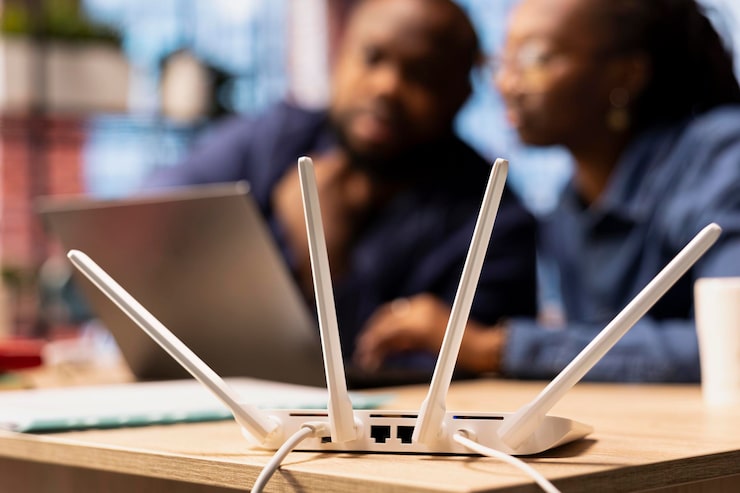
If other people connect to your phone’s hotspot, their usage comes out of your bundle. Laptops are especially hungry because they run updates and background services.
8. Weak signal
In poor coverage, phones may retry connections repeatedly, which can waste data and battery.
9. The type of bundle you bought
Some bundles are for specific apps, specific times (such as night bundles) or have a short expiry. If you’re using a different app or using it at the wrong time, the bundle may not apply, and you could end up using your main bundle or even your airtime. Always check your bundle’s terms with your network.
10. A hidden app using more than you think
Sometimes one app is responsible for most of the damage. You can only find out by checking.
10 settings that save data
Setting 1: Check which apps use the most data
Before changing anything, find your biggest data users.
- iPhone: Settings → Cellular (or Mobile Data). Scroll down to see usage per app.
- Android: Settings → Network & internet (or Connections) → Data usage, then look at app data usage. Menu names vary between brands.
If an app you barely use is near the top, restrict or uninstall it.
Setting 2: Turn on Data Saver or Low Data Mode
- Android: Look for Data Saver in your network or data usage settings. It limits background data for most apps.
- iPhone: Go to Settings → Cellular → Cellular Data Options and turn on Low Data Mode. It pauses automatic updates and background tasks.
This is the quickest single change, and it works with the other settings below.
ALSO READ: How to Spot AI-Generated Scam Messages and Fake Images (2026 Guide)
Setting 3: Restrict background data for heavy apps
- Android: Settings → Apps, choose the app, then look for Mobile data and switch off Background data.
- iPhone: Settings → General → Background App Refresh, then turn it off for apps that don’t need it, or use Wi-Fi only.
Good candidates: social media, shopping apps, games and anything you use only occasionally.

Setting 4: Update apps on Wi-Fi only
- Android (Google Play): Open Play Store, tap your profile picture, then Settings → Network preferences → Auto-update apps and choose Over Wi-Fi only. Do the same for app downloads.
- iPhone: Open Settings → App Store and choose how large downloads behave over cellular, such as asking before downloading big files. Turn off automatic downloads over mobile data.
Setting 5: Stop video autoplay
Open the settings of apps like Facebook, Instagram, X and TikTok and look for autoplay or media settings. Set videos to play on Wi-Fi only or never. This one change can save a lot if you scroll a lot.
Setting 6: Lower streaming quality on mobile data

In YouTube, Netflix, Spotify, Apple Music and similar apps, look for a data saver or mobile data quality setting and choose a lower quality. On a phone screen, the difference between standard and HD is often small, but the data difference is large. Where possible, download content on Wi-Fi and watch offline.
Setting 7: Turn off WhatsApp auto-download on mobile data
Open WhatsApp → Settings → Storage and data and look at Media auto-download. Under “When using mobile data,” untick photos, audio, videos and documents. You’ll still be able to tap to download anything you want.
While you’re there, check Use less data for calls, which reduces data during WhatsApp calls. Also set chat backup to Wi-Fi only so it doesn’t upload over mobile data.
Setting 8: Stop photo backup over mobile data
- Google Photos: Open your profile → Photos settings → Backup and make sure Use mobile data to back up is off.
- iPhone: Settings → Photos and check Cellular Data. Keep it off unless you want uploads over mobile data.
Photos and videos are large, and uploading them over mobile data is a classic bundle killer.

Setting 9: Switch off Wi-Fi Assist or “switch to mobile data”
When your Wi-Fi is weak, some phones automatically use mobile data to keep you connected. That’s convenient, but it can use your bundle without you noticing.
- iPhone: Settings → Cellular, scroll to the bottom and turn off Wi-Fi Assist.
- Android: Look for options such as Switch to mobile data automatically or Smart network switch in Wi-Fi settings, and turn them off.
Setting 10: Set a data warning and limit (and turn data off when you don’t need it)
- Android: In Data usage settings you can set a data warning and a data limit, so your phone alerts you or stops mobile data when you reach it.
- iPhone: There’s no hard limit setting built in, but you can check Cellular usage regularly and reset statistics at the start of each bundle to track it.
Also turn mobile data off when you’re not using it, for example while sleeping or in a meeting. Avoid leaving it on all day if you don’t need constant notifications.
Other habits that stretch your bundle
- Use Wi-Fi whenever it’s safe and available. Avoid sensitive logins on public Wi-Fi.
- Close or uninstall apps you don’t use.
- Don’t share your hotspot unless you have to, and keep an eye on who’s connected.
- Download on Wi-Fi before you travel: maps, music, videos and podcasts.
- Use lighter apps and web versions where they work well.
- Check your bundle balance and expiry date with your network’s official channel before buying a new one.
Quick checklist
- Checked which apps use the most data
- Data Saver / Low Data Mode on
- Background data restricted
- App updates on Wi-Fi only
- Video autoplay off
- Streaming quality lowered
- WhatsApp auto-download off
- Photo backup on Wi-Fi only
- Wi-Fi Assist / auto-switch off
- Data warning set
FAQ

Why does my data finish even when I’m not using my phone? Background refresh, updates, syncing and backups can all use data. Restricting background data usually helps the most.
Does Data Saver slow down my phone? Not noticeably. Some apps may load images or videos later or at lower quality, and background notifications may arrive with a delay.
Is HD worth it on mobile data? On a small screen, probably not for everyday viewing. Save HD for Wi-Fi.
How do I know which app is using my data? Check the per-app data usage screen described above.
Do these settings work on every phone? The ideas apply everywhere, but menus differ by brand and software version. Use your phone’s settings search bar for words like “data saver” or “background data”.
Final thoughts
Your data probably isn’t disappearing mysteriously. It’s being used by video, background activity and automatic downloads. Start with the biggest wins: check your usage, turn on Data Saver, stop autoplay and move updates and backups to Wi-Fi. Make these changes once, and your bundle should last noticeably longer.
Which setting saved you the most data? Share it in the comments.

[…] October 13, 2026 How to Check If Your Email or Password Has Leaked Online October 7, 2026 Why Your Data Finishes So Fast (and 10 Settings to Fix It) October 2, […]